
What is in the Network template
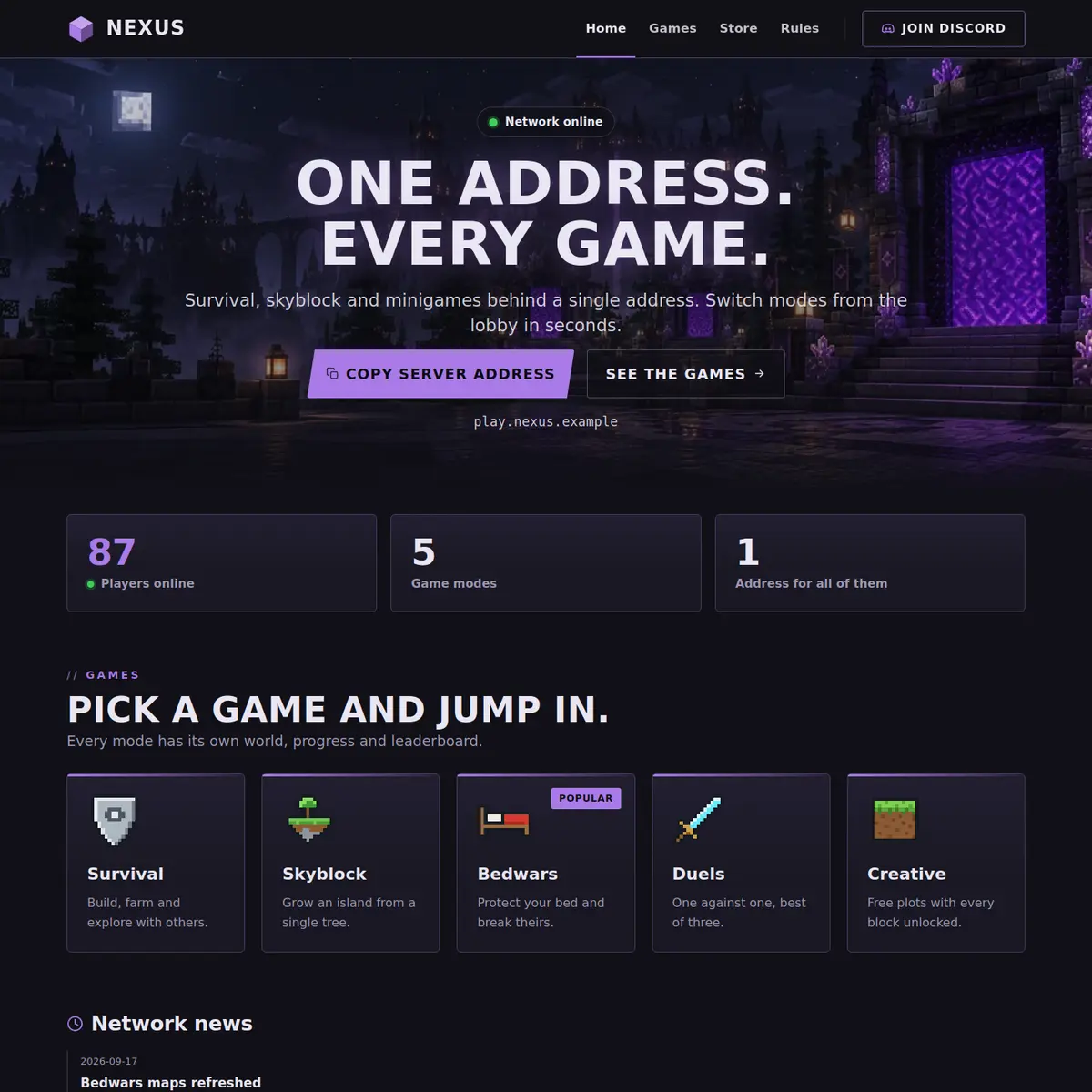
A player landing on a network's website is choosing a game, not a server. So the template leads with the modes: the Numbers strip under the hero says how many modes there are and how many players are online, and the Game modes section turns each mode into a card someone can recognise at a glance.
| Page | Sections on it | What it is for |
|---|---|---|
| Home | Hero, Numbers, Game modes, News, Rank grid, Community | The network at a glance: players, modes, what changed |
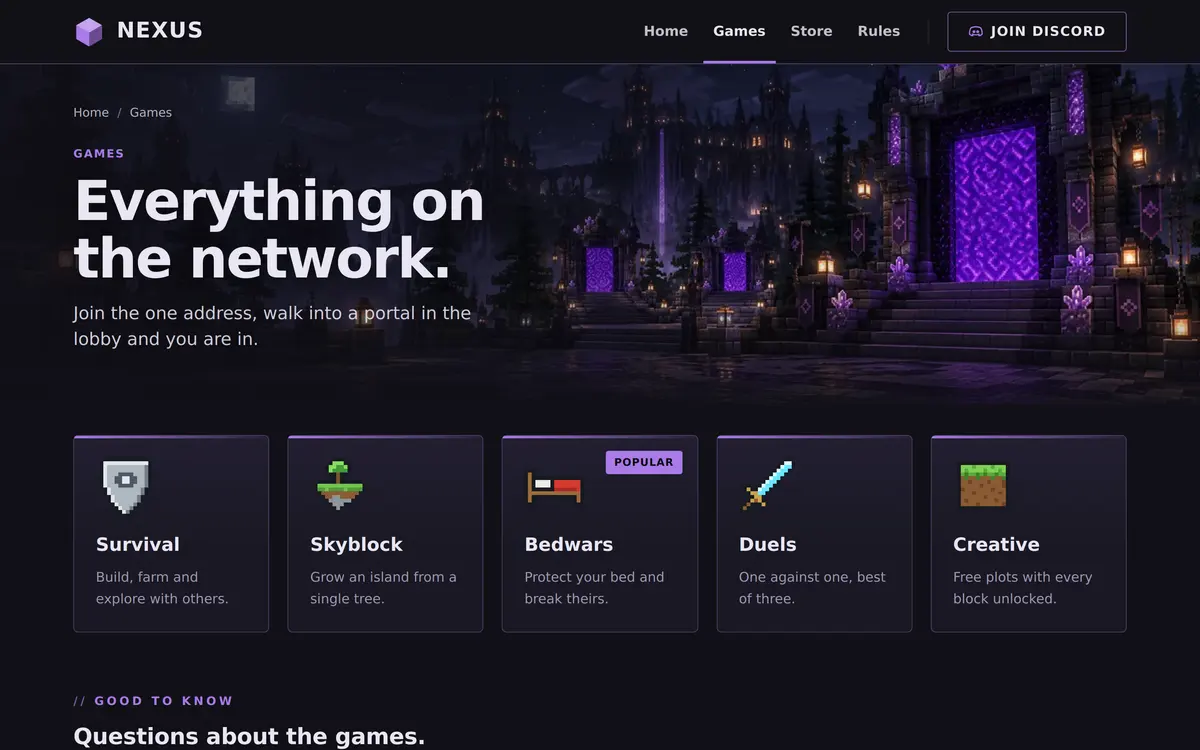
| Games | Page intro, Game modes, FAQ | Every mode on one page, plus the questions about one address |
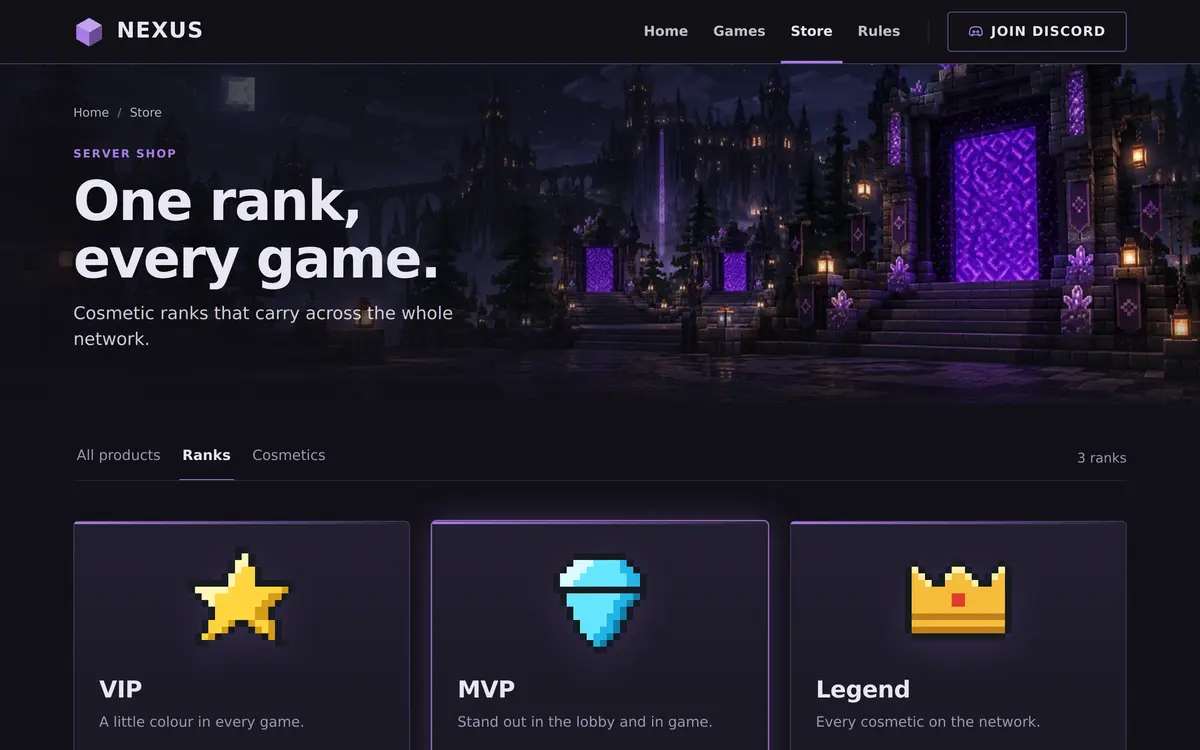
| Store | Page intro, Categories, Rank grid, FAQ | Ranks that carry across every mode |
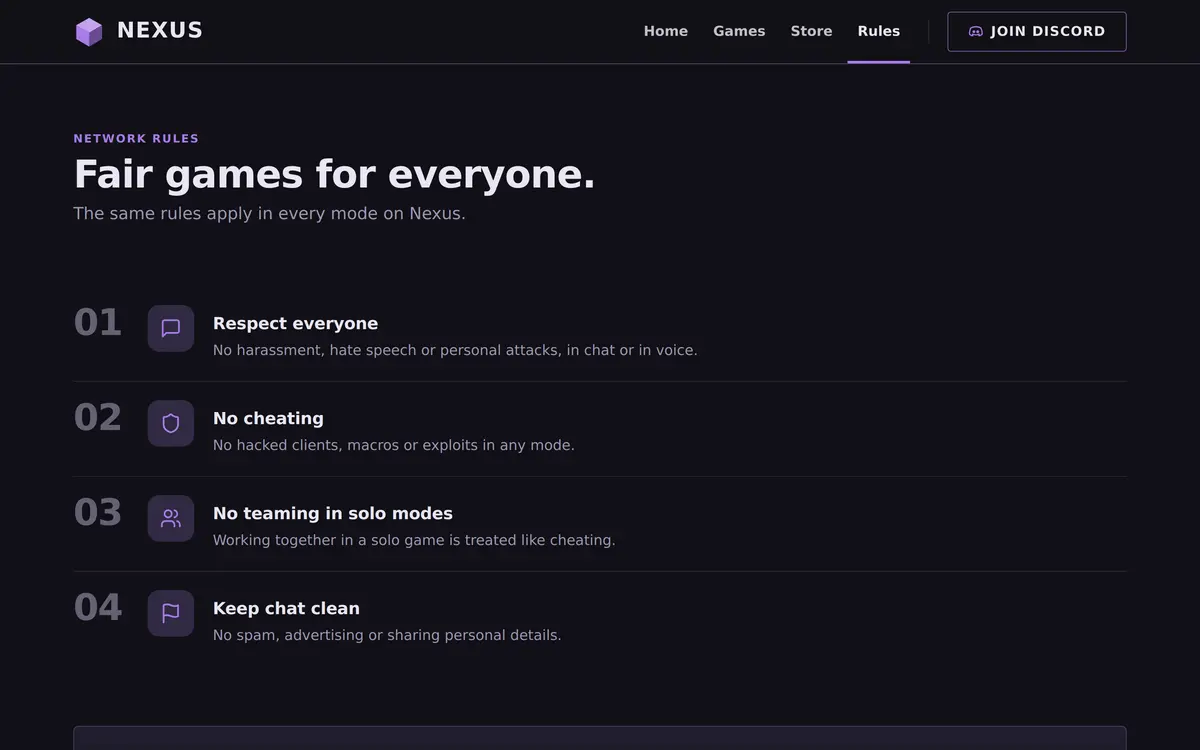
| Rules | Page intro, Rules list, Need help? | One set of rules for the whole network |
The four pages of the Network template
Home: numbers, modes and news
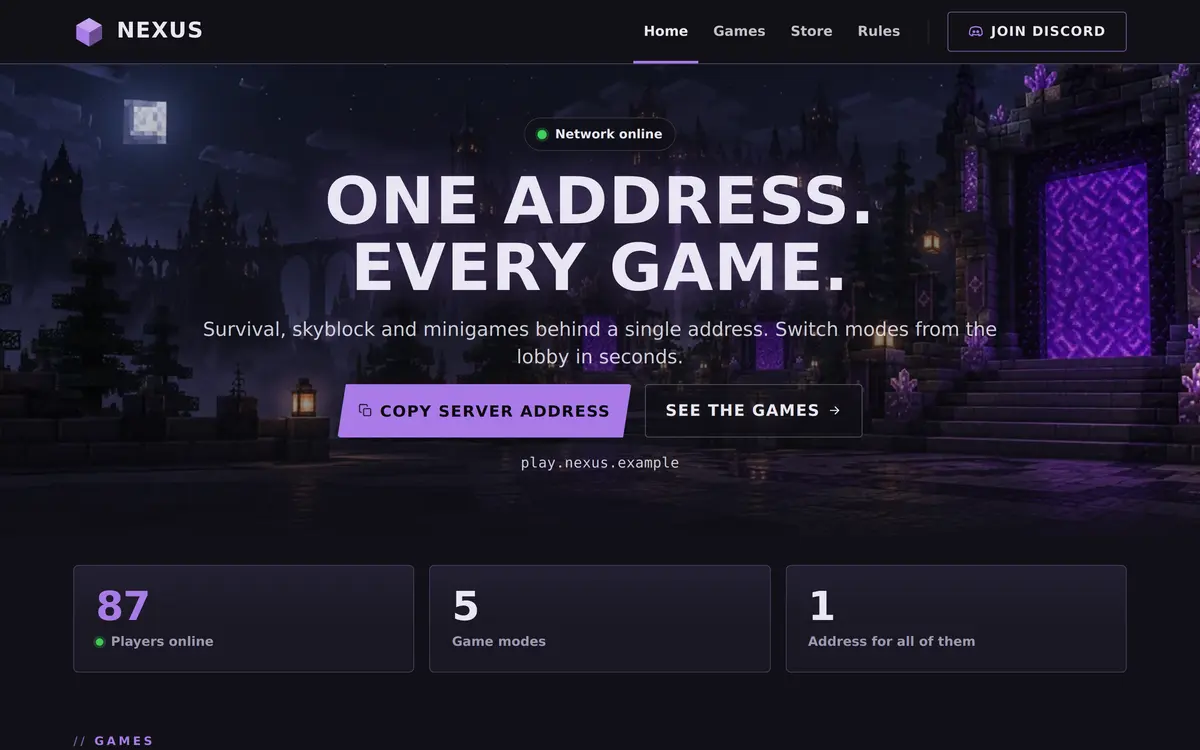
The hero reads One address. Every game. in the example, with a Network online label and buttons to copy the address and to see the games. There is no separate status bar: the Numbers strip does that job, with the players online now as its first number followed by numbers you choose, such as 5 game modes and 1 address for all of them.
The Game modes section follows with five cards, Survival, Skyblock, Bedwars, Duels and Creative, where Bedwars carries a Popular tag. Under it Network news lists short dated posts, then the Rank grid with VIP, MVP and Legend, and a Community card that sends players to Discord to find a party.
Games: every mode on its own page
The Games page repeats the mode cards under a Page intro that tells players to join the one address and walk into a portal in the lobby. Its FAQ answers the two questions every network gets: do I need a different address for each game, and is my progress shared between modes.
Each card has a name, a short text, an optional tag like Popular or New, an icon and the world behind your address it belongs to. Use Add mode for more, up to eight. The player count per mode works when your server is a network with several worlds behind one address; on a single server, leave Show how many players are in each mode off.
Store and Rules: one of each for the whole network
The Store page sells ranks that carry across the whole network, and says so in its intro, so a player does not wonder whether a rank bought for Bedwars also counts in Survival. The Rules page states that the same rules apply in every mode and adds one a single server does not need: no teaming in solo modes.
Who the Network template is for
It fits a server with a lobby and several modes behind one address: a minigame network, a hub with survival and skyblock worlds, or an event server that runs a different game every week. For a single game with a ranking, Skyblock, Factions or Prison say more with fewer cards.
- Minigame networks with Bedwars, Skywars, Duels or hunger games: one card per game, with the hunger games server guide for the rules of that mode.
- Survival networks with several worlds: one card per world, and the news section for resets.
- Event servers: rename a mode card each week and post the result in the news.
How to set up the Network template
Apply Network in the editor, then set up the modes before anything else, because both Home and Games read like an empty network until the cards are yours.
Apply the Network template
Go to Website in the server panel, open the editor, open Templates and press Preview on Network. Then press Use this template, or Start over with its example pages.
Make a card for each mode
Click Game modes on Home. For each mode fill in Name, Text, an optional Tag and an Icon, and pick the world behind your address. Use Add mode for more.
Decide on player counts
Turn on Show how many players are in each mode only if your server has several worlds behind one address. Do the same on the Games page.
Set your numbers
Click Numbers and keep players online as the first number. Use Add number for things you can back up, like the number of modes or the year you started.
Post your first news
Click Network news and use Add post with a Date, a Title and a Text. Posts show in the order you put them in, so keep the newest at the top.
Publish the network site
Press Publish. Our team checks the site before it goes live, and every later change is checked before it replaces the live version.
Questions about the Network template
Can the Network template show players per game mode?
Yes, when your server is a network with several worlds behind one address. Turn on Show how many players are in each mode and pick the world for each card.
How many game modes can I add?
Up to eight cards in a Game modes section. Most networks show their four or five main modes on Home and the full list on the Games page.
Does the news section need a date?
Yes. A post has a Date, a Title and a Text. Posts show in the order you put them in, so put the newest first and players see straight away how active the network is.
Is there a server status bar in the Network template?
Not as a separate bar. The Numbers strip shows the players online as its first number, which is what a network visitor looks for first.
Can I use the Network template for a single server?
You can, but then the mode cards describe features rather than games, and player counts per mode stay off. The Survival or SMP template usually fits a single server better.
More Minecraft server website templates
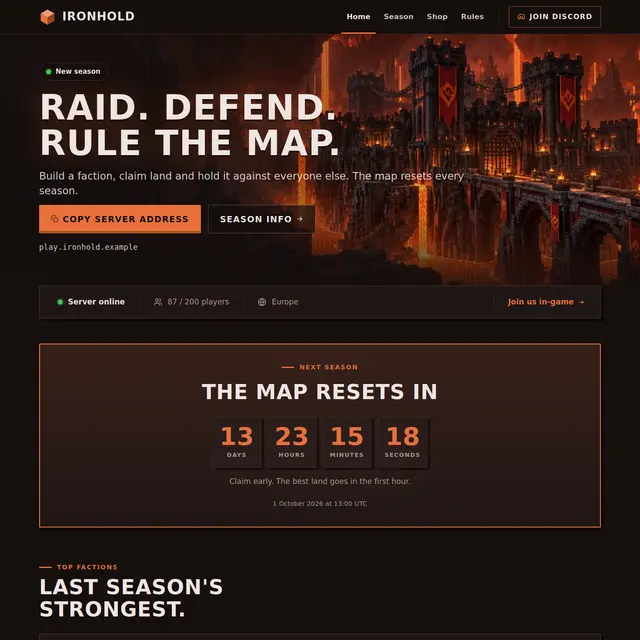 Factions templateA Nether theme with a countdown to the map reset, a power leaderboard and a season page.
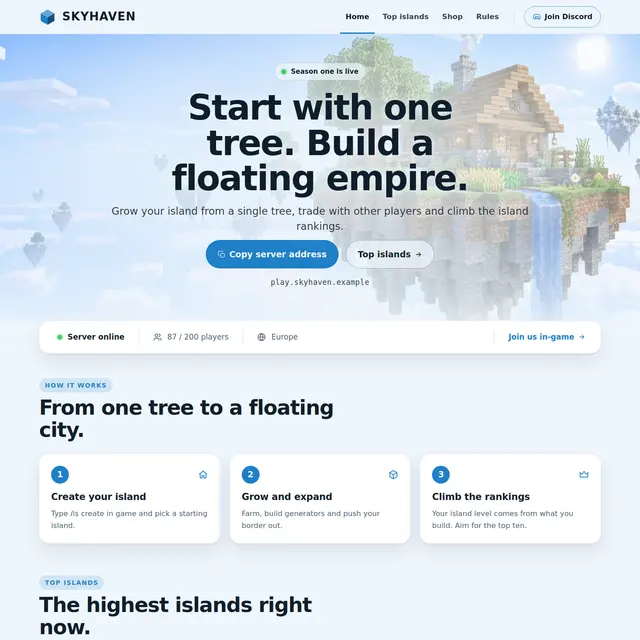 Skyblock templateA light sky theme with an island leaderboard page and how skyblock works in three steps.
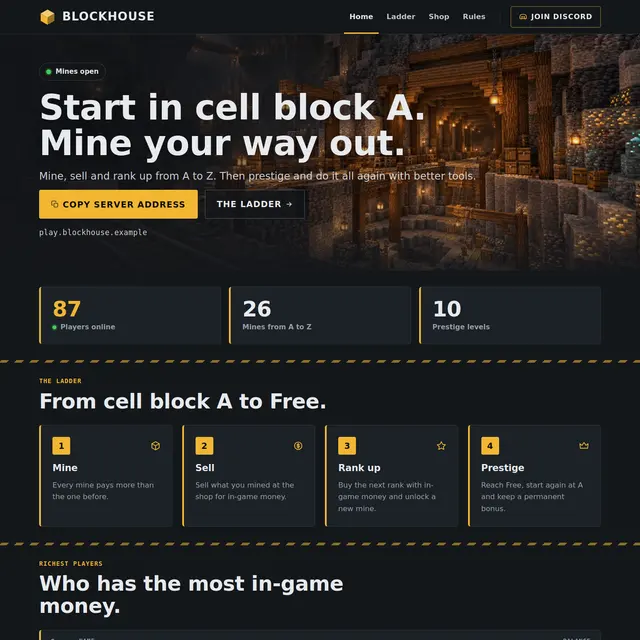 Prison templateA mine shaft theme with the rank ladder from A to Free, prestige and the richest players.
 Creative templateA light Sandstone theme for plot servers, with a build contest countdown and a hall of fame.